Showing posts with label Labels. Show all posts

Monday, April 1, 2013

Show Recent Posts With Thumbnails For Particular Label or Category in Blogger

Sometimes we want to have everything organized so that our readers can find topics of interest more easily, and that's when instead of putting a widget with the latest posts, we can put together the latest entries sorted by category, so that we'll be able to show the latest posts for each label we want and also display a thumbnail for our category.

recent posts, blogger widgets, blogger gadgets
Screenshot

To add this cool gadget/widget for the latest categories, just follow the next steps:

Steps

Step 1. From your Blogger Dashboard, go to Template/Edit HTML


...then tick the Expand Widget Templates checkbox:

Step 2. Search for this piece of code:

]]></b:skin>

and just above it, paste this one:

/* Recent posts by labels
--------------------------------- */
img.label_thumb{
float:left;
margin-right:10px !important;
height:65px; /* Thumbnail height */
width:65px; /* Thumbnail width */
border: 1px solid #fff;
-webkit-border-radius: 10px;
-moz-border-radius: 10px;
border-radius: 10px;
-webkit-box-shadow: 0 1px 1px rgba(0, 0, 0, .4);
-moz-box-shadow: 0 1px 1px rgba(0, 0, 0, .4);
box-shadow: 0 1px 1px rgba(0, 0, 0, .4);
}

.label_with_thumbs {
float: left;
width: 100%;
min-height: 70px;
margin: 0px 10px 2px 0px;
padding: 0;
}
ul.label_with_thumbs li {
padding:8px 0;
min-height:65px;
margin-bottom:0px;
border-bottom: 1px dotted #999999;
}

.label_with_thumbs li{
list-style: none ;
padding-left:0px !important;
}

.label_with_thumbs a { text-transform: uppercase;}
.label_with_thumbs strong {padding-left:0px; }

Step 3. Now search for this tag (CTRL + F)

</head>

...and add the following script above it:

<script type='text/javascript'>
//<![CDATA[
function labelthumbs(json){document.write('<ul class="label_with_thumbs">');for(var i=0;i<numposts;i++){var entry=json.feed.entry[i];var posttitle=entry.title.$t;var posturl;if(i==json.feed.entry.length)break;for(var k=0;k<entry.link.length;k++){if(entry.link[k].rel=='replies'&&entry.link[k].type=='text/html'){var commenttext=entry.link[k].title;var commenturl=entry.link[k].href;}
if(entry.link[k].rel=='alternate'){posturl=entry.link[k].href;break;}}var thumburl;try{thumburl=entry.media$thumbnail.url;}catch(error)
{s=entry.content.$t;a=s.indexOf("<img");b=s.indexOf("src=\"",a);c=s.indexOf("\"",b+5);d=s.substr(b+5,c-b-5);if((a!=-1)&&(b!=-1)&&(c!=-1)&&(d!="")){thumburl=d;}else thumburl='https://blogger.googleusercontent.com/img/b/R29vZ2xl/AVvXsEgsBNmAJLH992iOWQN1BxoA_GSqRwqtaxxgOjzmU_Uo50watF7fJjIXz_vdqKjCXnUrza1w8LzOou1cUK3PnHXRICo9C5EQp9QfcoiPg5o41JkVIdGF2TXhdkKxKxxnQOm87GLx0XCgQ3k/s1600/picture_not_available.png';}
var postdate=entry.published.$t;var cdyear=postdate.substring(0,4);var cdmonth=postdate.substring(5,7);var cdday=postdate.substring(8,10);var monthnames=new Array();monthnames[1]="Jan";monthnames[2]="Feb";monthnames[3]="Mar";monthnames[4]="Apr";monthnames[5]="May";monthnames[6]="June";monthnames[7]="July";monthnames[8]="Aug";monthnames[9]="Sept";monthnames[10]="Oct";monthnames[11]="Nov";monthnames[12]="Dec";document.write('<li class="clearfix">');if(showpostthumbnails==true)
document.write('<a href="'+posturl+'" target ="_top"><img class="label_thumb" src="'+thumburl+'"/></a>');document.write('<strong><a href="'+posturl+'" target ="_top">'+posttitle+'</a></strong><br>');if("content"in entry){var postcontent=entry.content.$t;}
else
if("summary"in entry){var postcontent=entry.summary.$t;}
else var postcontent="";var re=/<\S[^>]*>/g;postcontent=postcontent.replace(re,"");if(showpostsummary==true){if(postcontent.length<numchars){document.write('');document.write(postcontent);document.write('');}
else{document.write('');postcontent=postcontent.substring(0,numchars);var quoteEnd=postcontent.lastIndexOf(" ");postcontent=postcontent.substring(0,quoteEnd);document.write(postcontent+'...');document.write('');}}
var towrite='';var flag=0;document.write('<br>');if(showpostdate==true){towrite=towrite+monthnames[parseInt(cdmonth,10)]+'-'+cdday+' - '+cdyear;flag=1;}
if(showcommentnum==true)
{if(flag==1){towrite=towrite+' | ';}
if(commenttext=='1 Comments')commenttext='1 Comment';if(commenttext=='0 Comments')commenttext='No Comments';commenttext='<a href="'+commenturl+'" target ="_top">'+commenttext+'</a>';towrite=towrite+commenttext;flag=1;;}
if(displaymore==true)
{if(flag==1)towrite=towrite+' | ';towrite=towrite+'<a href="'+posturl+'" class="url" target ="_top">More »</a>';flag=1;;}
document.write(towrite);document.write('</li>');if(displayseparator==true)
if(i!=(numposts-1))
document.write('');}document.write('</ul>');}
//]]>
</script>

Note: to add your own pic for the posts with no thumbnail, replace the image url in blue with your own

So we have added the Css to style the widget and the script to make it work. Now all we have to do is to add the widget's code to the blog sidebar in a Html/Javascript gadget:

Step 4. Go to Layout - click on Add a Gadget


Step 5. Choose the HTML/Javascript widget and paste this code inside the empty box:

<script type='text/javascript'>var numposts = 3;var showpostthumbnails = true;var displaymore = false;var displayseparator = true;var showcommentnum = false;var showpostdate = false;var showpostsummary = true;var numchars = 100;</script>
<script type="text/javascript" src="/feeds/posts/default/-/Name-of-the-label?published&alt=json-in-script&callback=labelthumbs"></script>

Note: Where it says Name-of-the-label is the name of the label you want to display, and if your label is case sensitive, like in my example, then you should type it that way.

Also within the last code, there are parts that we can customize, just change true with false or vice versa:

var numposts ← Number of posts to display
var showpostthumbnails ← Show/hide thumbnails
var displaymore ← Show or hide the read more link
var displayseparator ← Show/hide separator
var showcommentnum ← Show/hide the number of comments
var showpostdate ← Show/hide the posts dates
var showpostsummary ← Show or not the posts summaries
var numchars ← Number of posts characters (here you have to change the 100 value)

Remember that the gadget displays the latest posts from a particular label, therefore, if you want to display the latest posts from other labels then just repeat step 5 for each additional category you want to add.

That's it :) Enjoy!
Read more > Show Recent Posts With Thumbnails For Particular Label or Category in Blogger

Tuesday, January 22, 2013

How to change a Label value

This article shows how to edit the name of an existing Label value in blogger, without editing each individual post that it's applied to.

Blogger and Labels


Previously, I've explained that labels are tags you can use to categorize your blog posts, and that the are the raw material of putting your posts into pages.

But what happens if you want to change the value of a label? For example, if you have a lot of posts that are labelled "Colour", but you find that most of your visitors are from the US and think you have poor spelling!

It would be nice if Blogger had a feature that said "change all X labels to Y labels" - but it doesn't (at moment, anyway).

One option is to edit each post individually, removing the old label and adding a new one. This works, but can be time consuming.

A better option is to use the bulk-labelling tools. This is a lot easier, though not quite as easy as you might think.


Blogger's Post-Dashboard labelling tools


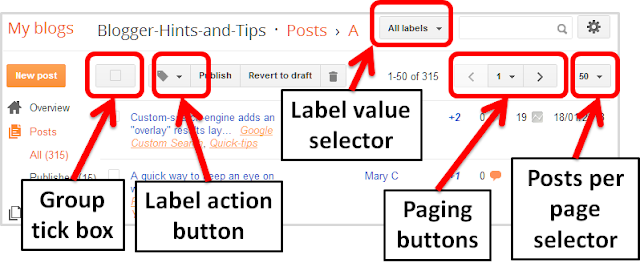
This picture shows the tools that you can use to work with labels (outside of the post-editor).  They are all found on the Dashboard when you are looking at the Posts tab.


The Group tick box either selects or un-selects all the posts you can currently see on the Dashboard > Posts tab (depending on whether they're selected or not at the moment - it works like a toggle-switch).

The Label action button applies an action to all the posts that are currently selected.   You can:
  • Make a new label and add it to the selected posts
  • Add an existing label to posts that don't currently have that label  (by just choosing the label) and are currently selected
  • Delete an existing label from posts that do currently have that label  (by just choosing the label) and are currently selected
Example Label Action Button values


The Label value selector lets you see a list of just posts with a label.

The Posts-per-page selector is where you select how many of your posts are listed in the Dashboard > Posts tab.

The Paging buttons let you move through the list of displayed posts.


How to change a label name


1 Close Blogger, and re-open it again.    (see below for an explanation of this step).

2 On the Dashboard > Posts screen, make sure that you are viewing 50 posts per screen  (or less if you don't have many posts)
Do this with the Posts-per-page selector near the top-right corner. You need to do it because Blogger's bulk-label tools will only let you work with 50 or less posts at a time.

3 Select the label that you want to rename from the Label value selector drop-down list.
This restricts the list to only posts with that label.
If you have more than 50 posts with the label, then there will be more than one screen-full of posts. You can see this in the Paging-buttons at the top right of the screen.

4   For each screen-full of posts that is shown:
  • Use the group-tick box at the top of the list of posts to select all posts that are currently on your screen.
  • Either choose the new value from the  Label action button drop-down menu - or use the New Label ... option in the first screenful of posts.   This will attach the new label name to the posts you have selected.
  • Choose the label value from the Label action button drop-down menu to Remove the old label from the posts you have selected.
  • Use the group-tick box at the top of the list of posts again, this time to unselect all posts that are currently on your screen.

After you have done this for all the screens of posts that currently have the old label value:
  • You should be left on the Dashboard > Posts screen, with a message saying that there are no posts with your old label. 
  • The old label will not be attached to any posts, and will not be visible in the Label-value-selector. 
  • If you displaying labels with your posts, then visitors to your blog who use a web-browser will not be able to see the old label value any more, and it will not be listed in any Label gadgets you have used.


What was the catch?

The approach described here deals with two "twitches" with how Blogger works.

Firstly, closing and re-starting Blogger before you start makes sure that absolutely none of your posts are selected initially: I've found that sometimes if a post is selected, and then you page up or down, that post is still selected. And sometimes a post is selected immediately after you have edited it. It can be quite hard to find these (because there is currently no feature to list "selected posts only"), so the re-start is the safest approach.

Secondly, there is a maximum of 50 posts per label action. This is a pain: it means that if you want to re-name the label on 300 posts, you need to do it in 6 groups of 50 each times. I can sympathise with Blogger about making sure that actions like this don't take "too long" - but the 50 posts limit does seem very low.


Is the old label gone for good?

This is an interesting question.  Blogger has set a limit of a maximum of 5000 labels per blog. Once you have replace a label value is the way described above, I'm not sure if it will be removed totally, or if it still counts towards the 5000 even though it's no longer in use. (And I'm not about to manually give a blog 5000 labels just to test it to find out!)


Related Articles:


Putting your posts into pages

Using Labels to categorize posts

How to edit a post that you have already published

Using Feedburner to Tweet your posts lets you include labels as hashtags
Read more > How to change a Label value

Friday, May 20, 2011

Using Labels to categorize your Blogger Posts

This article explains how to use Labels to categorise the Posts in your Blog, and how you can get around some of the limitations in Bloggers categorising tools.

Why to categorise your Posts

watermelon salad recipe can be labelled / tagged as  fruit, salad, dessert and pink
Grouping your blog's contents makes it easier for people who have reached your blog via Search to find other posts that they may be interested in - provided you add tools to your blog that let them navigate using labels.

It's essential if you want to make it look like you have put your Posts into Pages.

And it helps you to find posts yourself.


Blogger's tools for working with categories

The only tool that Blogger provides for categorising or grouping Posts is Labels.

In short, Labels are tags that you apply to posts.

Each post can have as many Labels as you want (there is an upper limit of 5000 labels-per-blog, but most people don't get near it).

And you can use labels for different purposes.  For example, a post titled "Photographing Long-haired Black Cats" could have three different labels
  • Cats - the the animal it's about
  • Photography - for the functional category
  • Jane Smith - for the author
The Labels gadget lets readers choose which groups of posts to see:  when a visitor clicks an item on the labels gadget, they are shown a list of posts that have the selected label applied to them.

You can add the Labels gadget as many times as you like, selecting which specific label values to show each time.   In the example above, you might add it three times, once for ainmals (showing Cats, Dogs and Rabbits), once for function (showing feeding, grooming and photography), and once for author (showing Jane Smith and Joe Bloggs).


How to add Labels to your blog:

1  Label your Posts:

For each post, add one or more labels.  You can add labels

Using the pre-Sept-2011 / old blogger interface:
  • In the post-editor, at the bottom right of the editor screen, or 
  • From the Edit Posts tab, by ticking the posts you want to put the labels on, and then choose the label or "New label ...") from the Label Actions drop-down box at the top of the screen.

Using the post-Sept-2011 / new blogger interface:
  • In the post-editor, in the Labels section at the right side of the post-editor or 
  • From the Posts tab, tick the posts you want to put the labels on, and then use the drop down arrow from the top icon that looks like a small luggage-tag:   choose the label or "New label ...").

2 Add the labels gadget:

Add the Labels gadget to your blog - the same way you would add any other gadget .   You can add it as many times as you need, choosing which labels to show each time.
 
Warning:  If you choose to show only a certain selection of Labels in a gadget, then this is all that it will show even if you add new labels to your posts later on.  However if you don't restrict which labels are shown, then new ones are automatically shown in the gadget if they are associated with published posts.

Drag-and-drop the labels gadget to wherever you want it:  some people put it just underneath their header, to make readers think they've looking at a more traditional web-page.

3 Add Labels navigation

Another way for your readers access labels is from the display in the post header or footer of the list of labels assigned to each post.

This is turned on by default in most templates:  you can change the setting and move it around using post-templete settings found under:

Using the pre-Sept-2011 / old blogger interface:   Design > Page Elements > Blog Posts (edit).
Using the post-Sept-2011 / new blogger interface:  Layout  > Blog Posts (edit)


What your visitors see:


A List of Posts:

If a visitor to your blog clicks on an item in the labels gadget or in the labels-list that is show for apost, then the "labels-view screen" is used to show them the posts that have the selected label.

This screen is like the main screen: is only shows a certain number of posts and visitors need to use the newer-posts and older-posts links to move back through the list.

Like the main screen, if you have used jump-breaks in your posts, then the list only shows the first part of each post.  If you haven't used jump-breaks, then the whole posts are shown.


A summary message:

Unlike the main screen, in most templates there is a message at the top of the page saying:
"Showing newest posts with label WHAT-EVER-YOU-CHOSE. Show older posts"

Or if there are no published posts with the selected Label, the message is slightly different.  Some people change their template to customise or remove this message:  Chuck in The Real Blogger Status has written an excellent description of  how to do this.


What Labels aren't - but appear to be:

Many people think that Labels are a way of actually putting Posts into pages.  However the Posts aren't actually moved around.  The labels-screen is just a way of viewing a smaller-than-usual group of Posts, and can make it look like you have put your posts into sub-pages.


Making multi-level categories:

Currently, Blogger only supports one level of grouping.  The only way you can make sub-groups of Labels is to add two categories to each post - one for the "major" category, and one for the "minor" category

For example you might use labels like these
Major category:  Minor categories:
Recipes: Sweet, Savory, Wheat-free
Party-games: ice-breaker, run-around, silent, outdoor
Music: lively, soft & gentle, traditional, instrumental
Each post would need to have at least one label from the major category, and one from the minor categories.

If you do this, you need to be clever about adding two levels of gadget, with only a selected group of labels shown in each gadget.   You might even need to edit your template, to only show certain gadgets in certain situations.


Related Articles:


Posts, Pages and Navigation

Setting what goes on the Home Page

Editing your blog's template:  advantages and disadvantages

Making it look like you have put your posts into pages.
Read more > Using Labels to categorize your Blogger Posts

Thursday, May 5, 2011

Posts, Pages and navigating inside your blog

This article explains Posts, Pages, and some ways that they can be used to help people move around inside your blog.

Overview:
Since Google introduced the new Pages feature, there has been a lot of confusion about Posts, Pages, Sub-pages, and how to categorise things.

This isn't helped by a lot of Blogger's own documentation, written before the Pages feature was introduced, which used the term "pages" to refer to a collection of Posts.

This article explains the difference, and looks at when each type of item should be used.


Pages vs Posts

A Post is the basic unit of information that you publish in Blogger.  Each post has a post-date, and this date is often the main tool for navigating around your blog.

On the surface, a Page is similar to a Post.  But really, they are quite different, and should be used for different things.

Pages are meant for static content that doesn't change often.  This is content that supports your main content, which is in your posts.   Because of this, Pages:
  • Cannot be set as your home page
  • Cannot be navigated to from the Newer/Older posts links
  • Don't have labels
  • Can only be navigated to from the Pages gadget - cannot be navigated to from the Labels gadget
  • Are not included in RSS feeds
  • Are not included when you export your blog contents,
Ideally, you should only edit your Pages very rarely.


Navigating around a Blog

When the Pages gadget is displayed as a horizontal bar, it looks like a menu bar.


This makes many people think that Pages are the main way of navigating around a Blog.  This wasn't true, initially, but recent changes to the Pages gadget have made it more helpful.   That said it's not the only - or best, IMHO - way to get your users navigate.

The tools that Blogger provides for navigating around a blog are:
  • The Labels gadget (to list posts by category) - you can use it to make it seem like you have put your posts into "pages"
  • The Archives gadget (to go directly to a post by date)
  • The Newer/Older posts links (to go through the blog one screen at a time)
The Linked List gadget can also be used for navigation, provided you set it up with links to Posts in your blog.  

And you can put links between individual Posts using regular hyperlinks (select the text, cick the Link item in the toolbar, put in the URL of the post that you are linking to).

The Pages gadget is not intended for navigating through most of the contents your blog - it is only useful for getting directly to reference information that isn't stored in the same sequence that your main blog contents are.


Related Articles: 


Blogs, Blogger, blogger, Post, Pages and  Labels - some basic definitions

The difference between Posts and Pages

Why Blogger's "static" pages are more trouble than they're worth

Categorising Items in your Blog

Putting your posts into "pages"

Jump Breaks and Posts
Read more > Posts, Pages and navigating inside your blog

Tuesday, April 26, 2011

How to put put Posts into your Pages in Blogger

This article shows how to set up your blog, using Blogger, so that it looks like your posts are on separate web-pages.


Can you put Posts onto Pages in Blogger?

Ever since Google introduced "pages" into Blogger, people have complained that their posts all go onto the "home page", and asked how to put posts onto different pages in their blog.


The standard, but unsatisfactory, answer is
"Sorry, that's not how Blogger works.   So called "static" pages in Blogger are meant to be used for reference information that doesn't change often, which you don't want to be part of your regular post-feed, but which you do want users to have easy access to."

Basically, this is part of the difference between post and pages.

Luckily it's easy to set up your blog so that it looks like your posts are on different pages [tweet this],

.... even though you and I know that this isn't how Blogger works.

The only aspect that some people don't like is that their posts all show up on the "home page" was well as the topic pages, but even this can be worked around, at least sometimes.


Follow these steps:

1  Categorise your posts by adding Labels to them.


2  Make a "pages look alike" menu bar:  

There are (at least) are three ways of doing this - choose which ever one suits your blog best:
a)   With a Labels Gadget:    
Use the usual add-a-gadget approach to put a Labels gadget into the spot where you would put the Pages gadget if you wanted to make a horizontal menu bar with it.

If your blog has some Labels that you don't want to have "pages" for, then set it to show only some of your Labels:

         b)   With a Linked-list gadget:   
Use the usual add-a-gadget approach to put a Link-list gadget where you would put the Pages gadget if you wanted to make a horizontal menu bar with it.
Add a link to the list for each Label that you want a "page" for.   The HTML to use for each Label value is

http://YOUR-BLOGS-URL/search/label/THE-LABEL-NAME

You can also add other items (eg individual Posts, or even Bllogger's static "pages" if you really must have them - see why I don't like them!) - see the menu bar at the top of this site for an example of this.


c)   With a Pages gadget:   

Use the usual add-a-gadget approach to put a Pages gadget into the menu bar area.
Use Label-links described above the Linked-list gadget option, as website links to add to your Pages gadget.


3   If you don't want all posts to appear on the "home page" was well as the topic pages, set your home page to show zero posts, by setting  "Number of posts on main page:" = 0   on:

Post-Sept-2011-Blogger (aka the new interface)   Layout  > Blog Posts (edit),
Pre-Sept-2011-Blogger (aka the new interface)     Design > Page Elements > Blog Posts (edit)


Alternatively, you could use a technique similar to Showing a Gadget only on the Home Page  to not show the Blog Posts gadget on the home page.  the condition to use is !=  instead of ==)   If you do try this, then I strongly recommend that you consider the various options for giving your blog a home page, and make sure you accept the disadvantages of editing your template.


Job Done

It really is that simple.  Your readers can now click on the "pages" in your blog from a "menu" at the top, and see a list of posts for the Page that they chose.   Even better, if some posts relate to more than one topic, they show up on both of the relevant pages.

Don't forget to test your blog, to make sure that the menu bar is working how you expect it to and that it looks OK, in all the browsers that your readers are actually using.


I'm keen to hear if this approach works for you.
  • It is a "good enough" alternative to "real pages"?
  • Are there any other side-effects of using Labels to "pretend" to be web-page titles?
Please leave your thoughts in the comments box below.


Related Articles: 


Using Labels to group your Blogger Posts

Adding external and internal URLs to your pages-gadget / menu bar

Giving your blog a home page

The difference between posts and pages

Showing a Gadget only on the Home Page
Read more > How to put put Posts into your Pages in Blogger

Sunday, July 25, 2010

Changing the case of your Label values

This article is about how to change the case of the Labels in your blog.  For example, from lower to initial case ("cats" to "Cats") or even all capital-letters ("CATS").

Why change case?

When some people start using Blogger, they apply labels to posts without much thought:  they just type "cats" into the label field, and don't consider how it will look later on.   Even worse, they type in "Dogs" for the next post and "FROGS" later on.

This gives an untidy, unprofessional-looking labels gadget.

And it's a bit hard to fix:  you can change the labels on individual posts, but if even one other post has "cats" as a label, it doesn't matter how many times you add "Cats" to new posts the label will always be recorded as "cats".

The only approach I've found is to apply a unique temporary label to all posts with the value you want to change, then to delete the initial label and use the temporary label to select the posts to apply the correctly-formatted value to.


How to change the case of existing Labels

Log in to Blogger, and go to the Posting > Edit Posts tab.

Select all the posts with the label you want to change (eg "fred"), by clicking on this Label in the left-hand panel, and then clicking Select All.

Use the Label Action... drop-down menu (just above the list of posts) to:
  • Give them a new temporary label that's not already in use (eg "xxx-temp") - when you have done this, they will all have at least two labels.
  • Remove the label that you want to change
  • Select all the posts with the temporary label
  • Give them the label that you want to change to (eg "Fred")
  • Remove the temporary label that you added in the 2nd step.


Warning:

Blogger blogs have a maximum of 5000 labels.   Some problems that have been raised in the Blogger-Help-Forum make me think that this is a life-time limit, and that a label is still included even if no current posts have it, though I haven't tested this personally.  I suspect that applying the procedure above will use up to three labels:  the original, the temporary one and the new one.   You may not want to use it if you think that your blog might ever reach the limit.


Related Articles: 


Using Labels to Categorise your Blogger Posts

Posts, Pages and Navigation.
Read more > Changing the case of your Label values

Wednesday, March 31, 2010

Jump Breaks are Useful even if you only show one Post per Screen

This article explains why it is useful to put jump-breaks into your post, even if normally you only show one Post on each "page" (ie screen).


Overview

Jump breaks are a feature that lets you show only the top portion of a post to start with:  if the reader wants to see the rest of the contents, they need to click on a "show me more" link, which expands to show the whole post.

Google have described adding "After the jump" breaks to posts, and the various factors involved in using them.

I'd never bothered with them, because on almost all of my blogs, I only show one Post per Screen.

However I recently realised that it is worthwhile putting them in anyway:  if only one Post is showing, they won't have any affect.  But there are some screens where they are helpful.


Not all Screens are Like the Main Screen

(NB  Until Google introduced Pages, I would have said Posts and Pages:  now, I say Posts and Screens:  a Post is one item that you publish, a Screen is a collection of them.   Most of the Google Help documentation still talk about Pages in this way - but it's confusing, because of the static-pages feature getting the same name.)

The main screen is that one that is opened when a reader goes to your blog for the first time, or when they select an article (eg from the archive gadget) and go to it.

However there are various other types of screen too.   For example:
  • The Labels gadget displays all (or a group of) the labels that you have given to posts.  

    When a reader clicks on a label in this gadget, the Screen displays a list of Posts that have this label.
  • The Archive gadget displays the dates that posts have been made on

    When a reader clicks on a time-period (eg month, week) in this gadget, the Screen displays a list of Posts that were posted in this time.

In these Screens, more than one Post is displayed (no matter what setting you have for Posts per Page).   And if your Posts have jump-breaks near the top, then this list looks a lot more like a list, so is a lot easier for your readers to use.   (You can see an example of this by clicking here - this will show you a list of all the posts in this blog about Facebook, for example)


Using a Post Template

I now have a template for new posts, because this makes it so much easier to structure articles in the same way, which makes them better for readers.

The Jump-break, which shows in Compose mode, makes a useful distinction between the article summary at the top (more about why this is useful later - that article's not finished yet!) and everything else after the break.


AdSense

If you are an AdSense publisher, then Google have said that there are some AdSense ads which  are cost-per-view, not cost-per-click, but that advertisers are only interested in having them showing when a reader first looks at the page.  Google have a way of calculating whether a specific advertisement is "above the break" or not.   We don't know what the rule for this is, but my guess is that this may include asking whether the ad is above or below a jump-break.  


Related Articles: 


Using Labels to categorise your posts

Setting up AdSense on your blog

Giving your blog a homepage

Setting the date for a post

The difference between Posts and Pages.
#
Read more > Jump Breaks are Useful even if you only show one Post per Screen
 
 
Copyright © blog
Blogger Theme by Blogger Designed and Optimized by Tipseo